
How to Record a TikTok Live (4 Methods, and What Each One Costs You)
Screen recording, desktop capture, third-party apps and cloud recording. Here is how each method actually behaves when a creator goes live at 3am, and which one survives contact with real life.
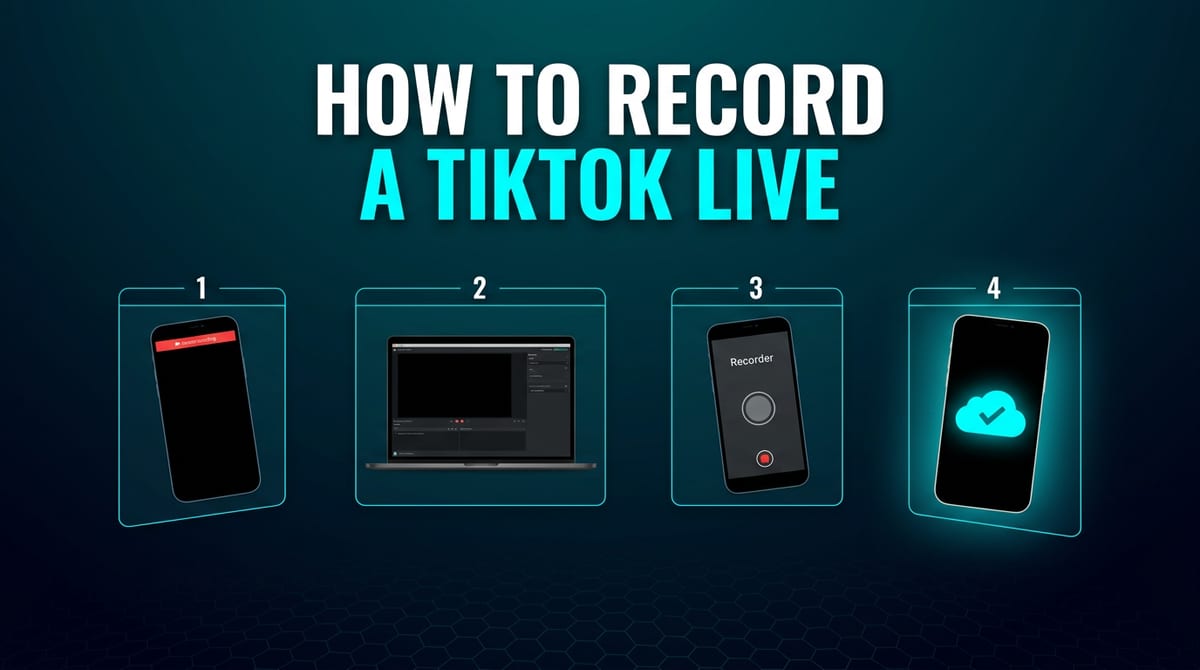
TikTok does not save other people's live broadcasts. When a live ends without the creator publishing a replay, it is gone — there is no archive to go back to and no setting you missed. If you want a copy, you have to make one.
There are four ways to do that. They are not equivalent, and the differences only show up when you try to use them on a broadcast you did not know was coming.
Method 1: Built-in screen recording
Every current iPhone and Android can record its own display. It is free, it needs nothing installed, and it works.
On iPhone: add Screen Recording to Control Center in Settings, open the live, swipe down from the top-right, and tap the record button. Long-press it first if you want microphone audio.
On Android: pull down twice for Quick Settings, tap Screen Record, and choose Media audio as the source.
What it costs you is everything a live broadcast happens to be. You must be awake, holding the phone, with the stream playing, for the entire duration. Leave the app and you capture your home screen instead. A call arrives and it lands in the recording. Your name sits in the creator's viewer list the whole time. And because you started when you noticed, the beginning is missing.
It is a reasonable tool for something you planned to watch anyway. It is not a way to catch lives.
Method 2: OBS Studio on a computer
OBS is free, open source, and captures at whatever quality your machine can push. Point a Window Capture source at a browser showing tiktok.com, add an Audio Output Capture source, and record.
The output is genuinely better than a phone screen recording. The constraints are the same ones plus a computer: you have to be sitting at it, the stream has to be playing in a visible window, and you have to press record before anything worth keeping happens. Configuring it takes a while the first time.
Worth it if you are archiving something scheduled. Useless at 3am.
Method 3: Third-party recorder apps
XRecorder, AZ Screen Recorder, DU Recorder and the rest add facecam overlays, trimming, and resolution control on top of the OS recorder.
They are still screen recorders. Every limitation in Method 1 applies unchanged — you must be present, you appear in the viewer list, you miss the start — and most add ads or a watermark unless you pay. The extra features are real; they just solve a different problem than the one you have.
Method 4: Cloud recording
This is the one that behaves differently, because the recording does not happen on your device at all.
You add a public TikTok username to an auto-record list. Servers watch that account continuously, detect the moment it goes live, and record the broadcast directly. Your phone is not involved, so it can be off, offline, or in airplane mode while a two-hour stream is captured in full.
Three things follow from that architecture:
- You do not have to be there. The point of a live is that you cannot schedule it. This is the only method that does not require you to.
- You are not in the viewer list. Nothing joins the chatroom on your behalf, so there is no footprint to see.
- You get the whole broadcast. Even starting a recording manually halfway through produces a video that begins where the stream began, because the server is not limited to what your screen showed.
The cost is that it is a service rather than a feature of your phone. TKREC is free for one auto-recorded profile with 50 GB of storage; more profiles and more storage are paid.
Which one to actually use
If you want a specific broadcast you already know about and you plan to watch it anyway, the built-in screen recorder is fine and free.
If you want to stop missing lives, none of Methods 1 to 3 can help, because all three require you to be present at an unpredictable moment. That is not a quality gap, it is a structural one.
What TikTok can see
No method notifies the creator that a recording is happening. TikTok has no detection mechanism for screen recording, and cloud recording never touches your account.
The visible difference is the viewer list. Screen recording, OBS and third-party apps all require you to be watching, which means your username is displayed to the creator for as long as you record. Cloud recording never appears there.
Getting started
Add one creator, leave it alone, and check back after the next time they broadcast. That is the whole test — either the recording is waiting for you or the method does not work, and you will know within a day.